
Learn about the My Third Parties page
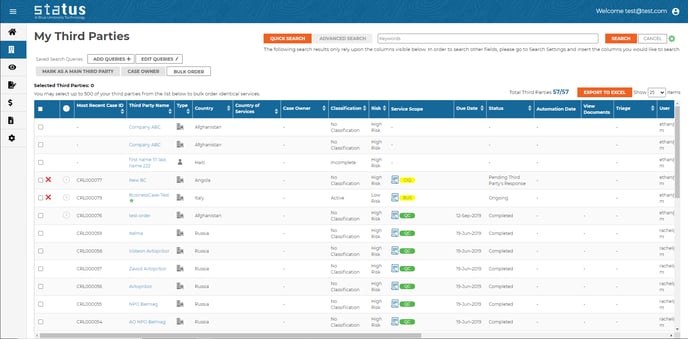
The My Third Parties page gives a holistic overview of all your third parties in Status. From here you can see each third party’s relevant details and the current status of reports, third party interactions, automation stages and more.
Search
Use the Search function to easily find third parties. Type in your search string in Quick Search to quickly find your third party or use the Advanced Search to build a search string to filter third parties based on criteria (i.e. Classification is Active and Nature of Business is Customer). If the third party name is another language, you can also use the Unique Identifier (UID) generated by Status to locate the entity in the system.
Save your most frequently used searches as Saved Queries to create your personal "hot buttons" for future sessions.
POWER USER TIP: You can filter and segment your third party universe with a combination of specific search criteria such as user, location or risk level. Once saved, your last 10 search queries will be automatically displayed on the system.
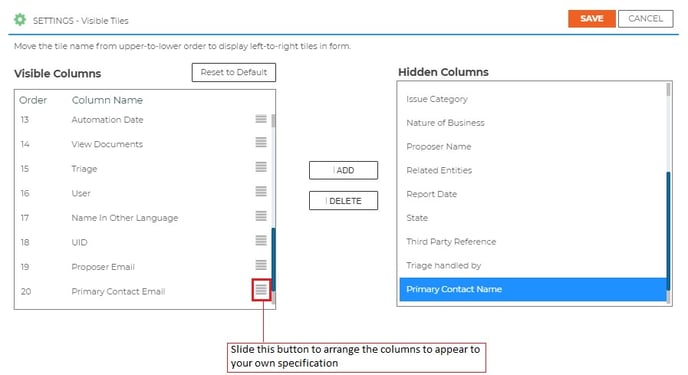
To add / remove or re-arrange columns click on the settings button in the right hand corner of the page:
Exporting Data
Use the Export button in the bottom left corner of the My Third Parties page to export the data shown on this page to Excel.
Bulk Change / Bulk Order
This feature will allow you to easily bulk change third party case owners in the event of personnel changes or changes in responsibilities as it relates to relationships with third parties.
You can also 'Mark as Main Third Party' and order services in bulk - simply select the relevant third parties and select the function/service you wish to use/order.
Icons and Legend
The icons next to your Third Parties indicate if there are any completed questionnaires, reports or other documents to download. A red X means you can CANCEL an ongoing service.
A page-specific legend for icons can be found in the bottom right corner of each Status screen.
Icons for Industry Members
You can see various details about the third parties you share with other Industry members, as well as shared questionnaires or reports.