Understand your homepage at a glance.
Home Page: Intro
The first thing you see when you log in is the Status dashboard. Once all third parties are imported, the homepage gives you a comprehensive overview of your third party universe.
Click on the Home icon to return to the homepage.
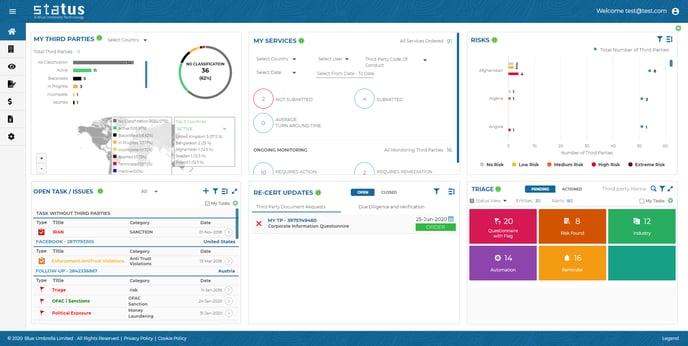
My Third Parties
A dropdown menu helps you select your country of interest. Immediately view your top 5 countries to narrow your selection. You can also select the classification to narrow or filter the selection.
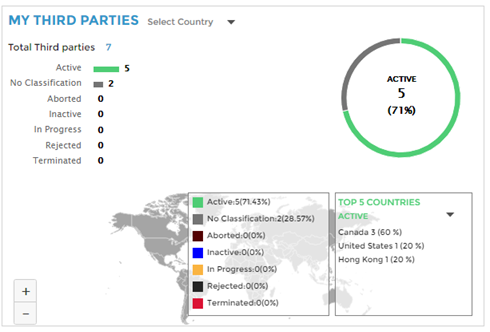
Power user tip: The My Third Parties field combines all third party information available. Upload a new third party and see for yourself!
My Services
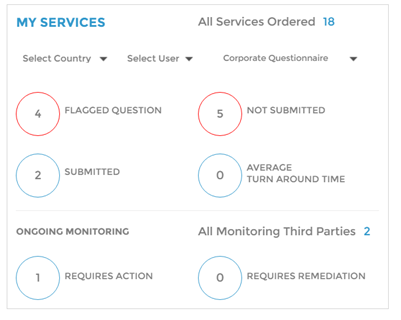
My Services gives the status of any report, service or monitoring that’s been ordered through Blue Umbrella.
- Filter your services by locations, user and service type
- Click on the numbers to view more details
- If monitoring has been initiated for any of your third parties, view details about the ongoing service.
Risks
Filter and sort your third party countries. You can filter countries by:
- Selected Countries or Regions
- Top 10 Extreme Risk
- Top 10 High Risk
- Top 10 Medium Risk
- Top 10 Low Risk
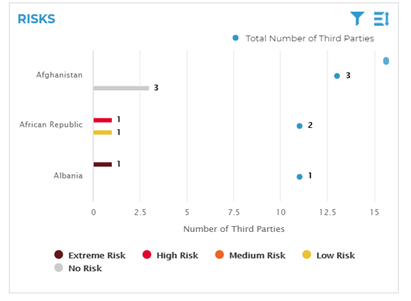
The different risk categories are a result of an algorithm that helps determine the risk level of the third party. The risk level is based on all the elements you see in the third party risk table, but can also be changed based on your own specific risk criteria.
Open Tasks / Issues
This data comes from the Task / Issue Tracker. It allows you to manage priorities by filtering out less important issues.
- Click on the downward arrow to show more details
- Click on “Read more” to see more details.
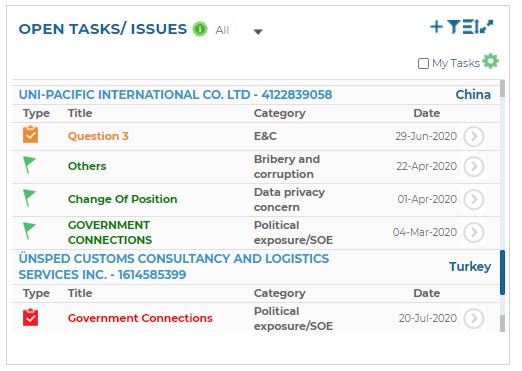
You can add new Issues or Tasks by clicking on the +. You can also filter the results by selecting the  button which will allow you to filter by Color, Country, Region, Service/Tile, Date, User, Business Unit or Category of Issue or Task.
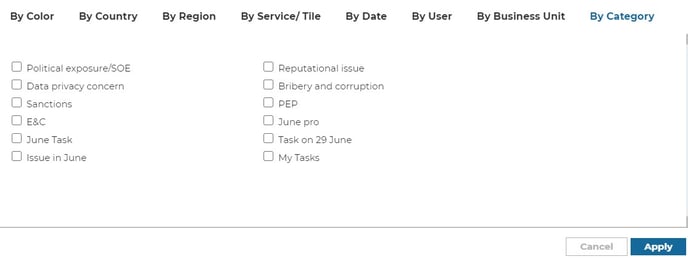
Power user tip: The Open Issue / Task field combines all open issues for all third parties.
Re-Cert Updates
Re-Cert Updates gives a holistic picture of any document retrieval or due diligence report that has an associated timeline to repeat the action. These can be sorted by:
- Expiration Date Ascending
- Expiration Date Descending
- Contract Renewal Ascending
- Contract Renewal Descending
- Entity Name (A-Z)
- Entity Name (Z-A)
Two weeks prior to the re-cert timeline, an email reminder will be sent to the associated user asking if they want to proceed with the action.
Triage
The Triage tile gives an overview of alerts related to third party interactions or activities. In other words, whenever something deviates from the typical compliance process, compliance can manage the issue in Triage.
From here, you can easily click to view the reports or details associated with a Triage alert, or click “Action” to handle the issue associated with the alert.
The following issues will enter Triage by default:
- Flagged questions from Questionnaires & Business Case
- Risks Found from due diligence reports & monitoring
- Industry: identified match of Shared Due Diligence or Shared CIQ.
- Any automation that has gone off-course
- Reminder: if any Third Parties have been added to your Watchlist
- Email delivery failure
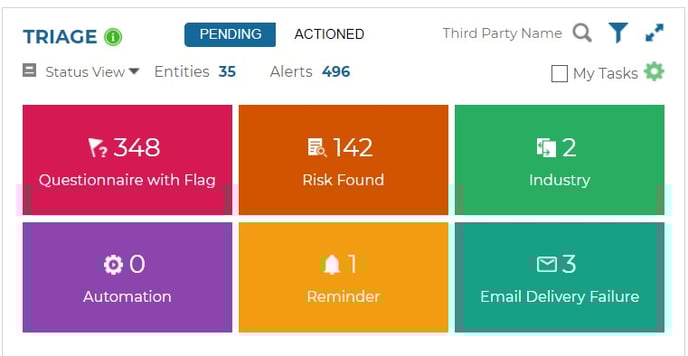
In the top right hand corner of the Triage Tile you can:
- Search for a Third Party within Triage by typing into 'Third Party Name'
- Add filters
- Expand the page
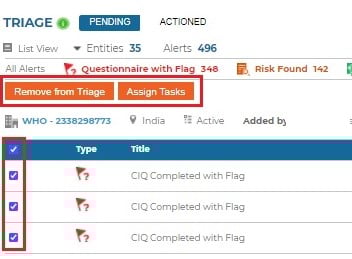
When reviewing flags or risks within Triage you can action on a case by case basis or you can multi-select to remove from Triage or assign to the Issue / Task Tracker