
Industry Questionnaire
As a member of the Industry Initiative, you can leverage a standardized questionnaire where third party replies can be shared, saving time and resources for members and third parties.

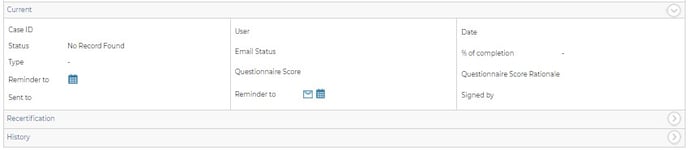
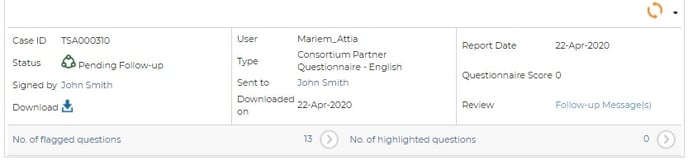
A green Load button means a completed questionnaire is available for you to download. Click the Load button to download the questionnaire into your instance and your flagged questions will populate the tile. Clicking the blue download arrow will download the full questionnaire as a PDF.
A grey Load button means a completed questionnaire is available, but you do not have permission to access it. By clicking it, you can request that the third party share their questionnaire with you.
If you do not see a Load button, a completed questionnaire is not available and you can order a new questionnaire.
You can use a custom questionnaire. Please contact your Blue Umbrella Client Success Manager for details.
Sending a New Questionnaire
To send a questionnaire to a third party, select “Order”. On the next screen, select “Corporate Information Questionnaire”. New Industry questionnaires can only be ordered if the current one is more than 3 months old - you can check the 'Downloaded On' date to see when an Industry Questionnaire was last downloaded.
You will be prompted to provide the contact information of the third party, who will be sent login details to access a third party user interface.
The third party can consent to the industry disclaimer, choose who to share their questionnaires with and consent to being searchable.
Once the corporate information questionnaire is submitted, Status will send an email to the person who submitted the questionnaire allowing the third party to be notified upon questionnaire submission.
Completed Questionnaires
- Flagged questions from questionnaires will appear in the Triage tile as well as in the Questionnaire tile
- Flagged questions can be added to Issue Tracker for further action/remediation
- Important questions can also be highlighted without affecting the overall risk.
Within the Questionnaire tile, clicking on 'History' will provide details of submitted questionnaires. From here you are able to view Flagged or Highlighted questions.
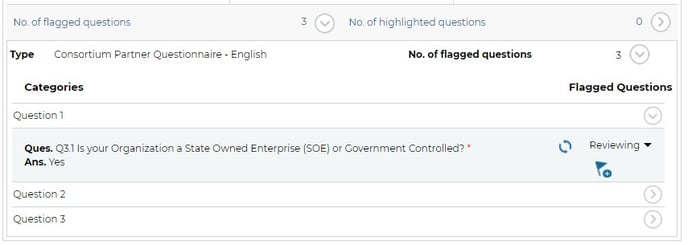
You can mark any Flagged or Highlighted questions as 'under review', 'reviewed' and also add to the Task / Issue Tracker.
POWER USER TIP: In order to add any highlighted questions to the tile, please contact your Client Success Manager.
Follow up Questions:
You can send follow-up questions to a third party that has completed their questionnaire, in case you need them to clarify their answers or provide more information:
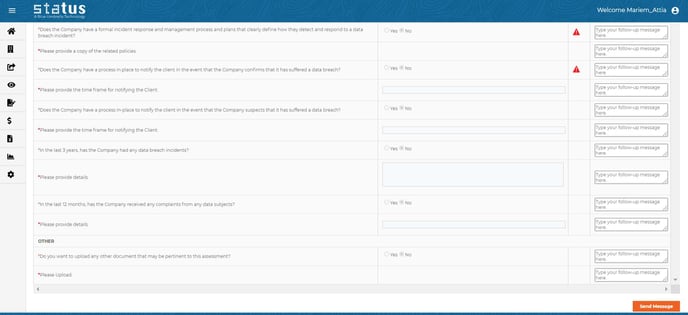
- Access a third party’s dashboard, navigate to the Case Details tile and click the questionnaire icon & then on 'View Report'
- Add questions in the Follow-Up column. Once you send your message, the third party will be notified of your clarification questions
- Third parties can log into the platform and reply to your questions, but cannot change their original answers
- Once the third party has replied to your questions, their responses will appear on the questionnaire. You can add as many follow-up messages as desired. All follow-up questions must be completed before the third party can submit the reply.
Follow up questions will appear colour coded to indicate if they are Pending, Cancelled or Completed.
This allows you to easily request more information about a third party’s questionnaire directly through Status.
Questionnaire Automation
You can choose to automatically order services based on the answers submitted by the third party. The question doesn’t need to be flagged in order to be considered as an automation criteria. To enable this feature, please contact your Client Success Manager.